Equipment, Devices and Services
- Equipment, Devices and Services
- Wireless devices
- Routers
- Verizon Router
- Fios Router
- Fios Quantum Gateway
- Actiontec GT784WNV
- D-Link 2750B Gateway
- Verizon Business Internet Gateway XC46BE
- Verizon Internet Gateway Business FSNO21VA
- Verizon Business Internet Gateway ASK-NCM1100E
- Verizon Internet Gateway for Business (ASK-NCQ1338E)
- Arris NVG558 LTE Router
- Discontinued networking equipment
- Fios Accessories
- Extenders
- Fios TV Equipment
- Equipment returns
- Fios Internet Services
- Fios TV Services
- Voice Services
Remote Controls
Verizon provides a variety of remote controls which work specifically for each make and model of set-top boxes. Each one has different remote codes and are used to pair the remote with your TV. To buy a replacement Fios TV remote control visit the Verizon Fios Equipment and Accessories Store.
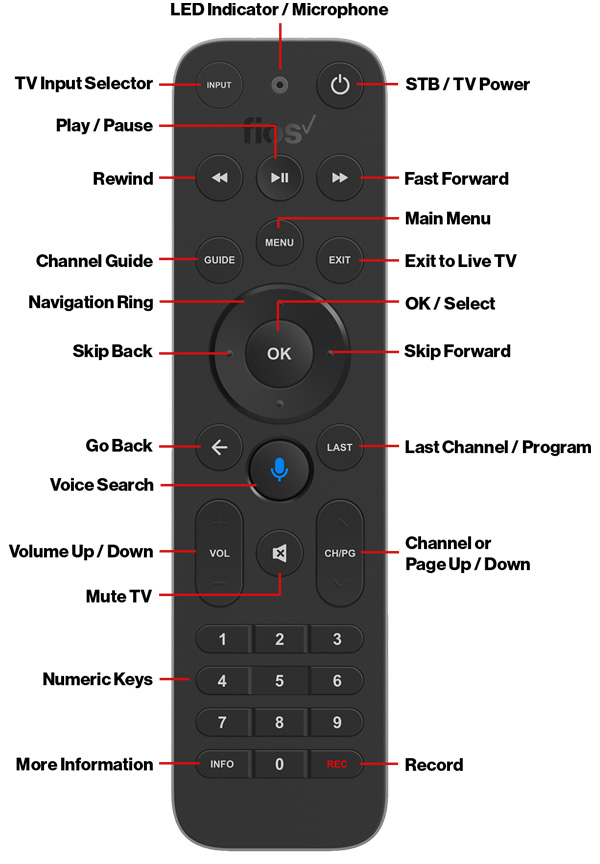
The Fios TV Voice Remote is designed specifically for Verizon's latest model Fios TV One, and includes the following features:
Find my Fios TV Voice Remote. If you misplace your Fios TV Voice Remote, press the power button on the Fios TV One twice. The Fios TV Voice Remote that’s paired with that Fios TV One will start making a beeping sound. When you find the Fios TV Voice Remote, press any button on the Fios TV Voice Remote to silence the beeping. Watch how to find the Voice Remote.
Motion-activated light. There is a sensor on the back of your Fios TV Voice Remote that activates the Fios TV Voice Remote light when it detects motion—making it easier for you to see the Fios TV Voice Remote in the dark.
Wireless Bluetooth connection. The Fios TV Voice Remote connects with your Fios TV One via a wireless Bluetooth connection so it will still work if your Fios TV One is hidden in a cabinet or other non-metal enclosure—as long as it’s not farther than 25 feet away.
Voice commands. With the Fios TV Voice Remote, you can use your voice to tell your Fios TV One what to do. Simply press and hold the microphone button to give commands. Speak normally and hold the Fios TV Voice Remote about 12 inches from your mouth. If held too closely, your voice may come across distorted and difficult for the Fios TV Voice Remote to understand. Learn more about voice commands.
Voice Search. The Voice Search button allows you to tell Fios TV what you want to watch by holding down the button and saying what you’re looking for. Release the button once you’re done speaking.
Menu button. The Menu button takes you to the main on-screen menu. From there, use the ring surrounding the OK button to move between menu options.
Guide. The Guide button takes you directly to the programming grid guide. Pressing the Guide button again brings up a selector that allows you to choose another view.
Navigation ring and OK/Select. Press the navigation ring segments for up, down left or right and the OK buttons to navigate and make onscreen selections.
Skip Forward and Back. While using the DVR or watching Video on Demand, press the Left navigation ring segment to skip back and press the Right navigation ring segment to skip video forward.
Back (arrow) button. The Back (arrow) button sends you back to the previous screen.
Exit button. The Exit button will leave your current menu location or screen and return you to normal TV viewing.
Info button. Press the Info button to get more details on the show you're watching.
Mute button. Mutes the sound from your TV.
Channel / Page +/- buttons. Use the Channel plus and minus buttons to choose one channel up or down in the guide or to page up or down when viewing the Guide.
Last button. The Last button jumps back and forth between the last two programs you were watching.
Record. Record any show that you’re watching on live TV from the moment you started watching that program.
Pair your Voice Remote.
To pair your Fios TV Voice Remote with Fios TV One or Fios TV One Mini:
- Point the Fios TV Voice Remote toward the Fios TV One you wish to pair it with
- Press and hold the Play, Pause and O buttons at the same time
- Release the buttons when the blue light starts flashing on the Fios TV Voice Remote
- When the blue light stops flashing on the remote, your Fios TV Voice Remote is connected, paired and ready for use
After you’ve paired your Fios TV Voice Remote to your set top box, your HDMI-connected TVs and audio systems should automatically be detected and ready to be controlled by your Fios TV Voice Remote.
Navigate to Menu > Settings > Voice control > Fios TV Voice Remote > Program Voice Remote > Automatic Setup and once the automatic setup completes you’ll see a Success message in the top right of the TV screen.
If automatic setup doesn’t work, navigate to Menu > Settings > Voice control > Fios TV Voice Remote > Program Voice Remote > Manual Setup and then select your TV or receiver brand and model, and follow the steps. You will see a Success message in the top right of the TV screen when the setup successfully completes.
Watch how to set up your Fios TV Voice Remote.
Program your Fios TV Voice Remote to control TV/audio settings
Your HDMI-connected TVs and audio systems should automatically detect your Fios TV One remote. To make sure they’re connected, go to Menu > Settings > Voice control > Fios TV Voice Remote > Program Voice Remote > Automatic Setup. Once the automatic setup completes, a Success message will display in the top right of the TV screen,
In some cases, you may have to manually enter your specific TV and audio equipment information by doing the following:
- Navigate to Menu > Settings > Voice control > Fios TV Voice Remote > Program Voice Remote > Manual Setup and click OK
- Select your TV or receiver brand and model and follow the provided steps
- A Success message will display in the top right of the TV screen when the setup completes